1. MCP นี้ให้อะไร
MCP (Model Context Protocol) คือวิธีมาตรฐานที่ให้ AI เรียกเครื่องมือภายนอกได้ เว็บบทเรียนนี้มี MCP ในตัว
| ค่า | |
|---|---|
| URL | https://aiexpo.buildwithoracle.com/mcp |
| การล็อกอิน | ไม่ต้อง (No authentication) |
| การส่งข้อมูล | Streamable HTTP แบบ stateless |
เครื่องมือ 4 ตัว อ่านอย่างเดียวทั้งหมด:
| เครื่องมือ | ทำอะไร |
|---|---|
search |
ค้นบทเรียนทั้งไทยและอังกฤษ ด้วยความหมาย (vector bge-m3) รวมกับคำค้น กรองได้ด้วย lang, lesson, topic |
fetch |
อ่านเนื้อหาเต็มของหัวข้อ หรือทั้งบท พร้อมแนบภาพหน้าจอได้ถึง 3 ภาพ |
get_image |
ส่งภาพหน้าจอให้ AI ดูเอง |
list_lessons |
รายชื่อบทเรียน ลิงก์ และหัวข้อทั้งหมด |
↓ 2. claude.aiURL เดียว ใช้ได้ทั้ง claude.ai, ChatGPT, Claude Code และ Codex
2. claude.ai
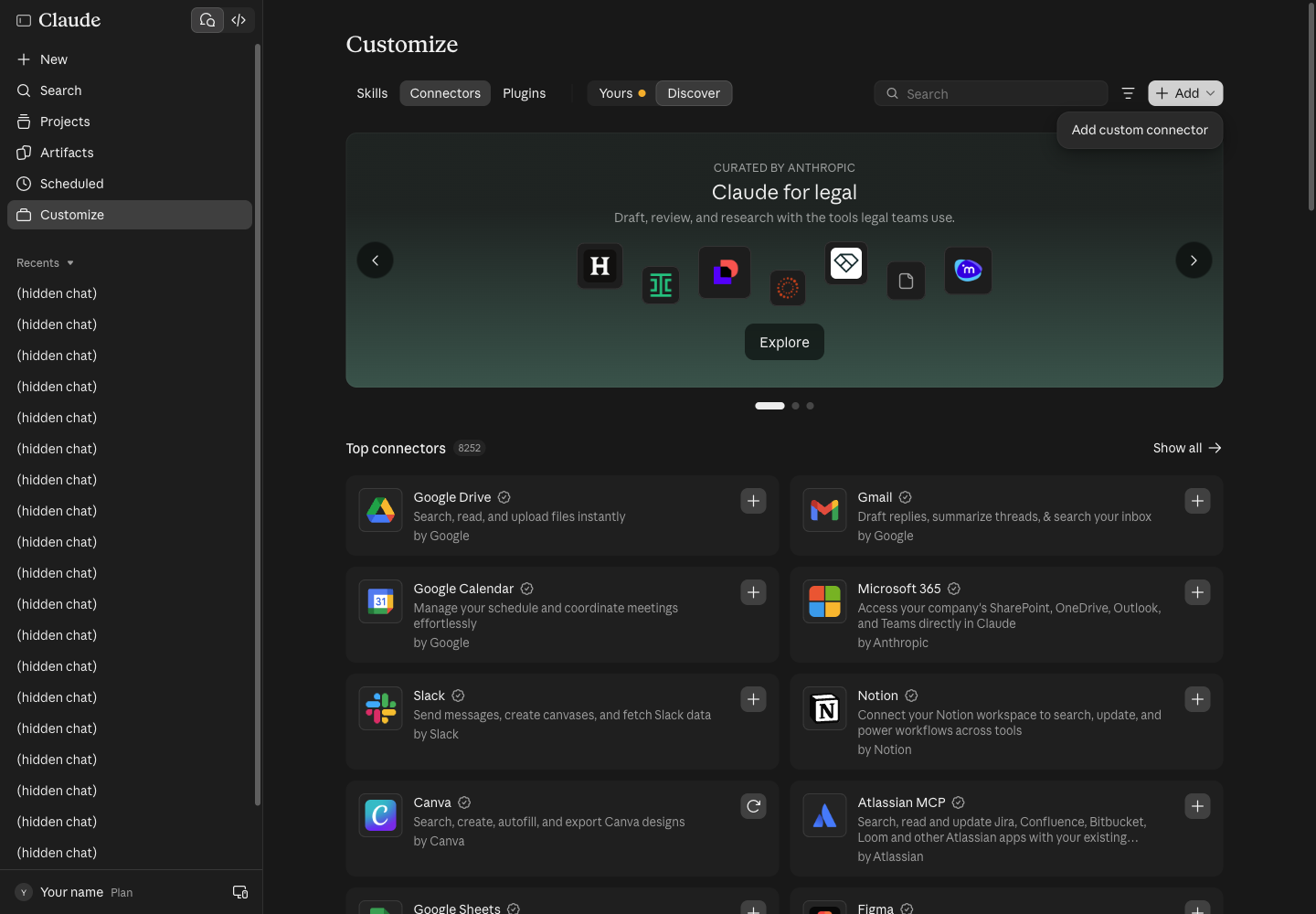
2.1 เพิ่ม connector ไปที่ Customize → Connectors กด Add แล้วเลือก Add custom connector
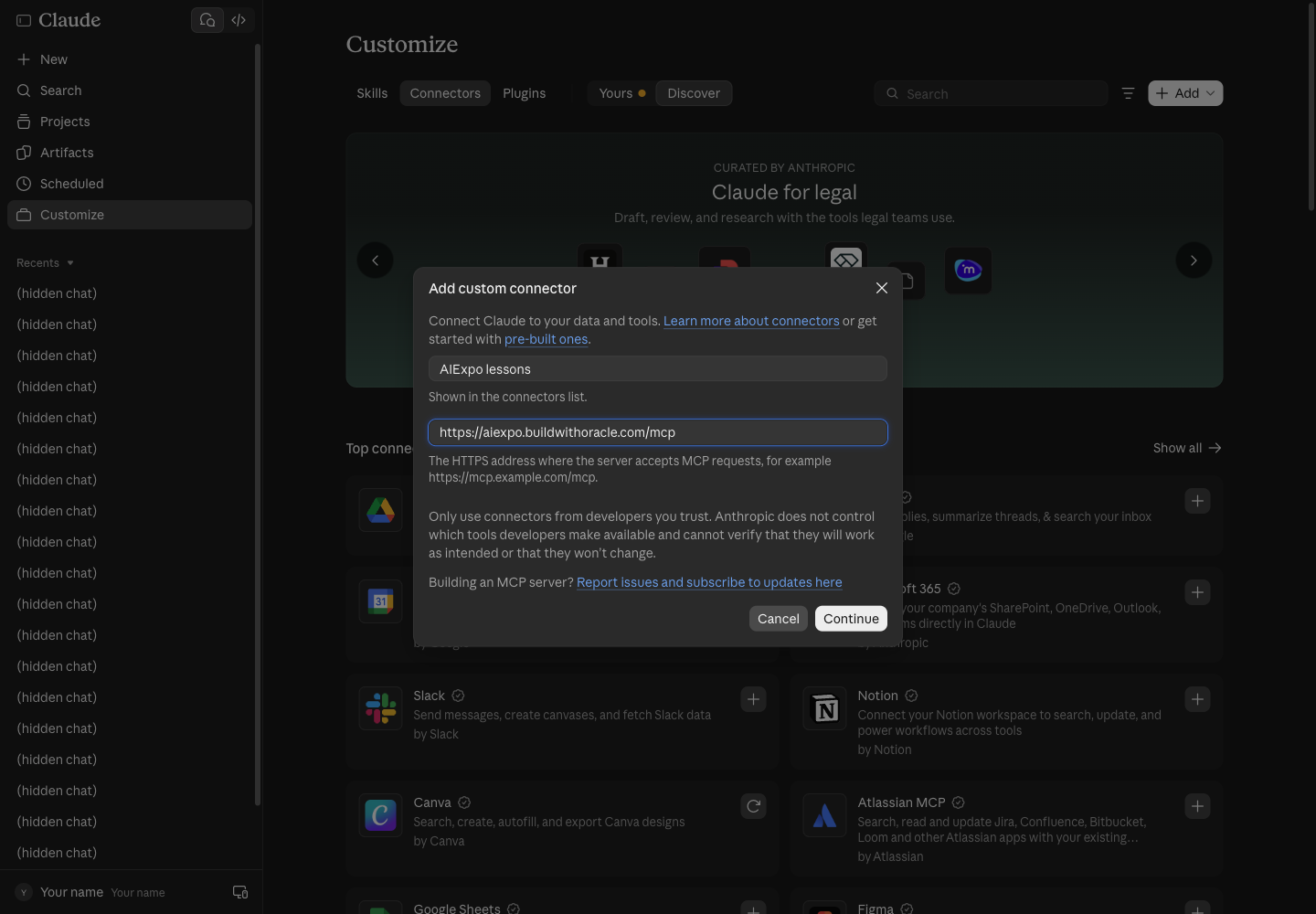
2.2 ใส่ชื่อและ URL ชื่ออะไรก็ได้ เช่น AIExpo lessons และ URL https://aiexpo.buildwithoracle.com/mcp แล้วกด Continue
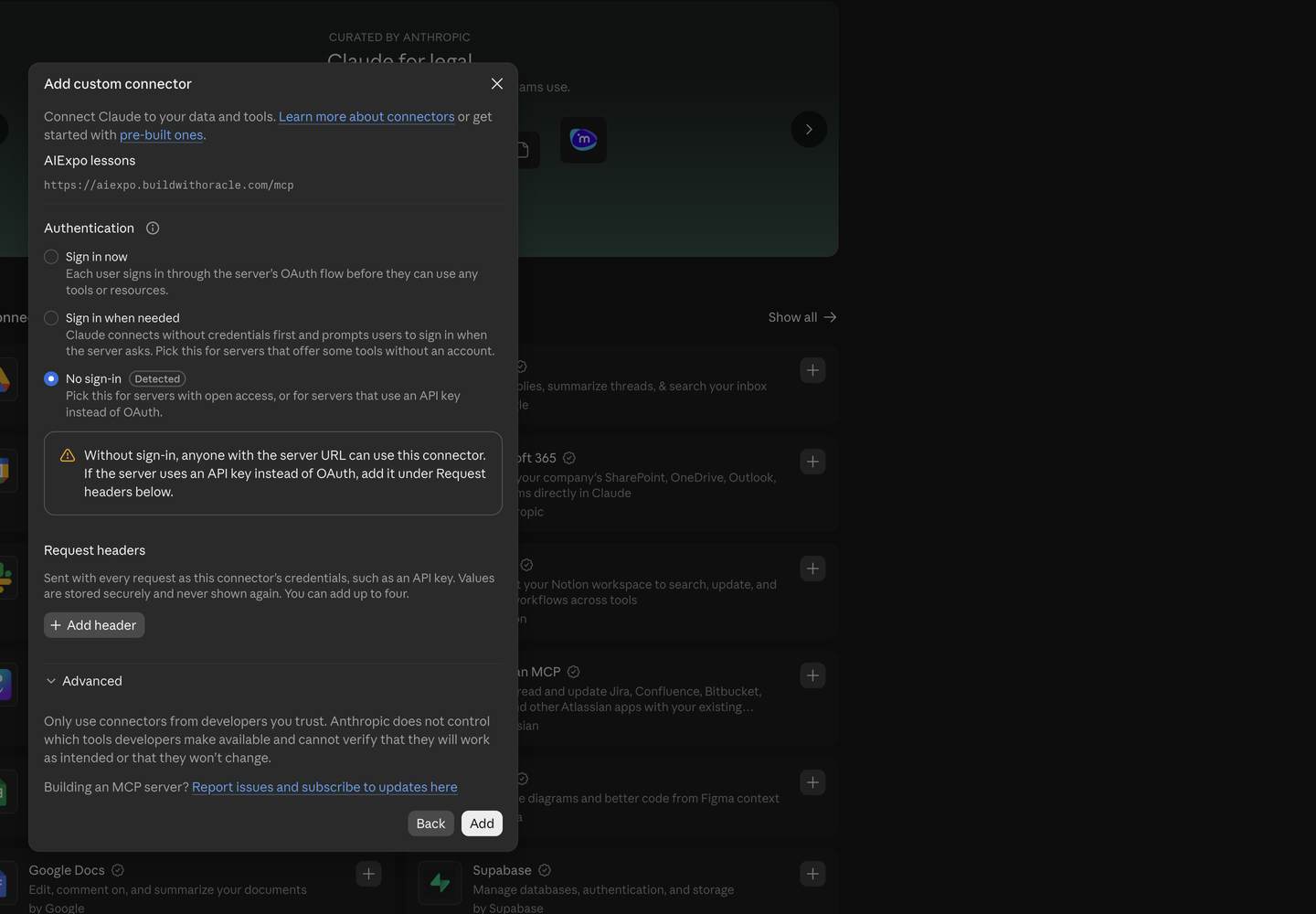
2.3 เลือก No sign-in claude.ai ลองเรียกเซิร์ฟเวอร์ให้ก่อน แล้วติดป้าย Detected ที่ No sign-in เองเลย กด Add
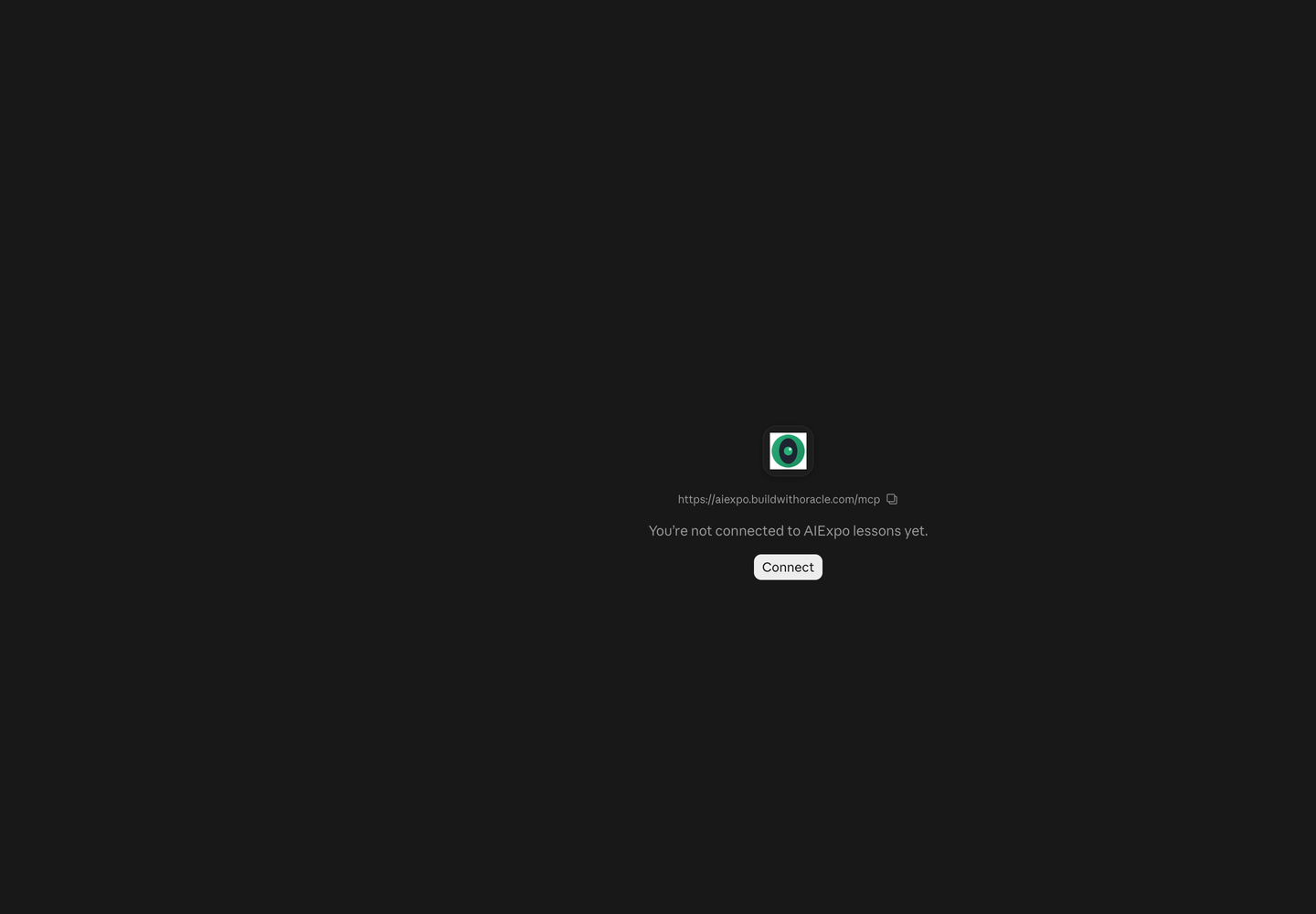
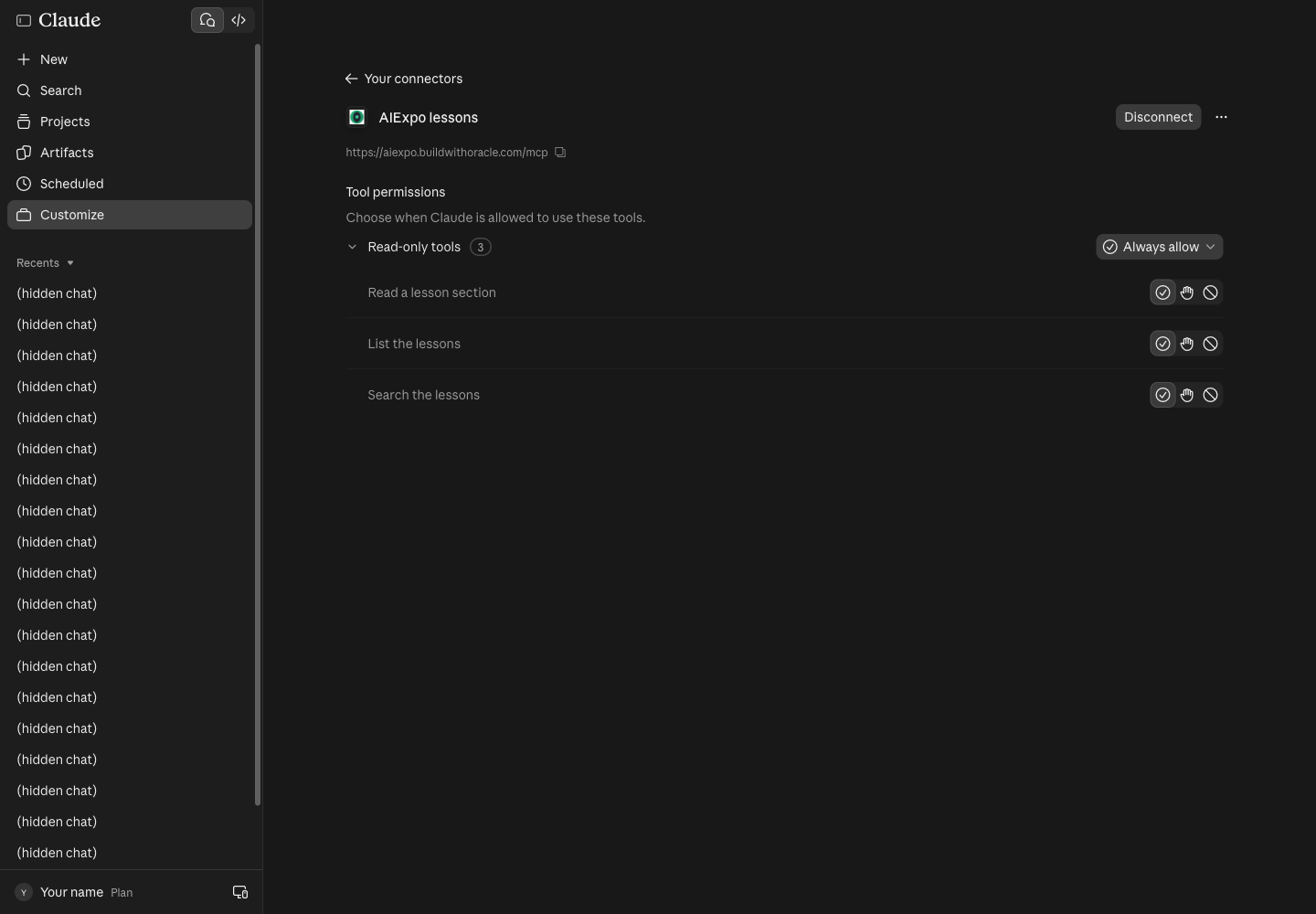
2.4 กด Connect หน้าของ connector จะขึ้นว่ายังไม่ได้เชื่อม กด Connect
เชื่อมแล้วจะเห็นเครื่องมือ 3 ตัว อยู่ในกลุ่ม Read-only tools
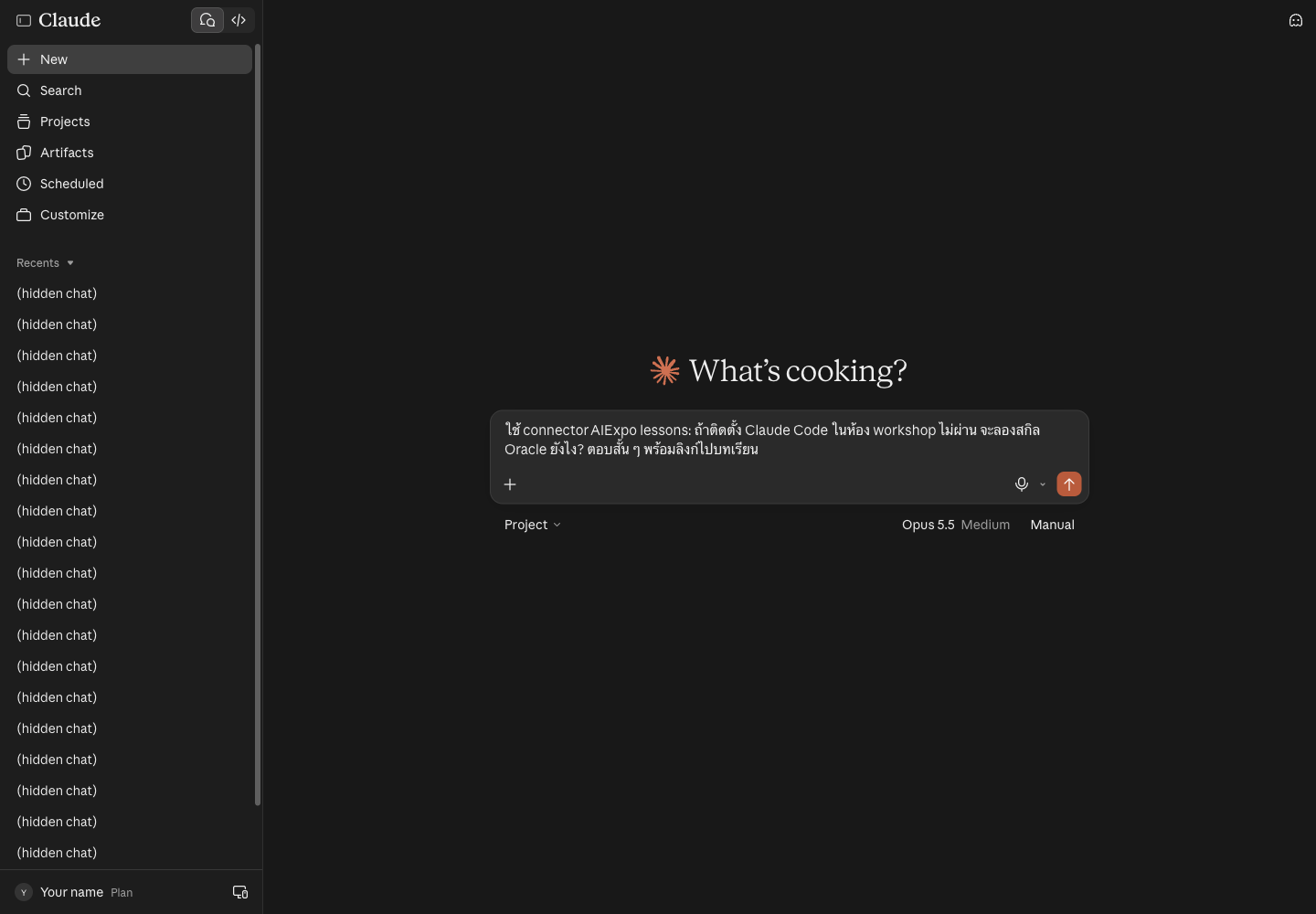
2.5 ลองถามในแชทใหม่ บอกชื่อ connector ในคำถามด้วย Claude จะเลือกเครื่องมือเอง
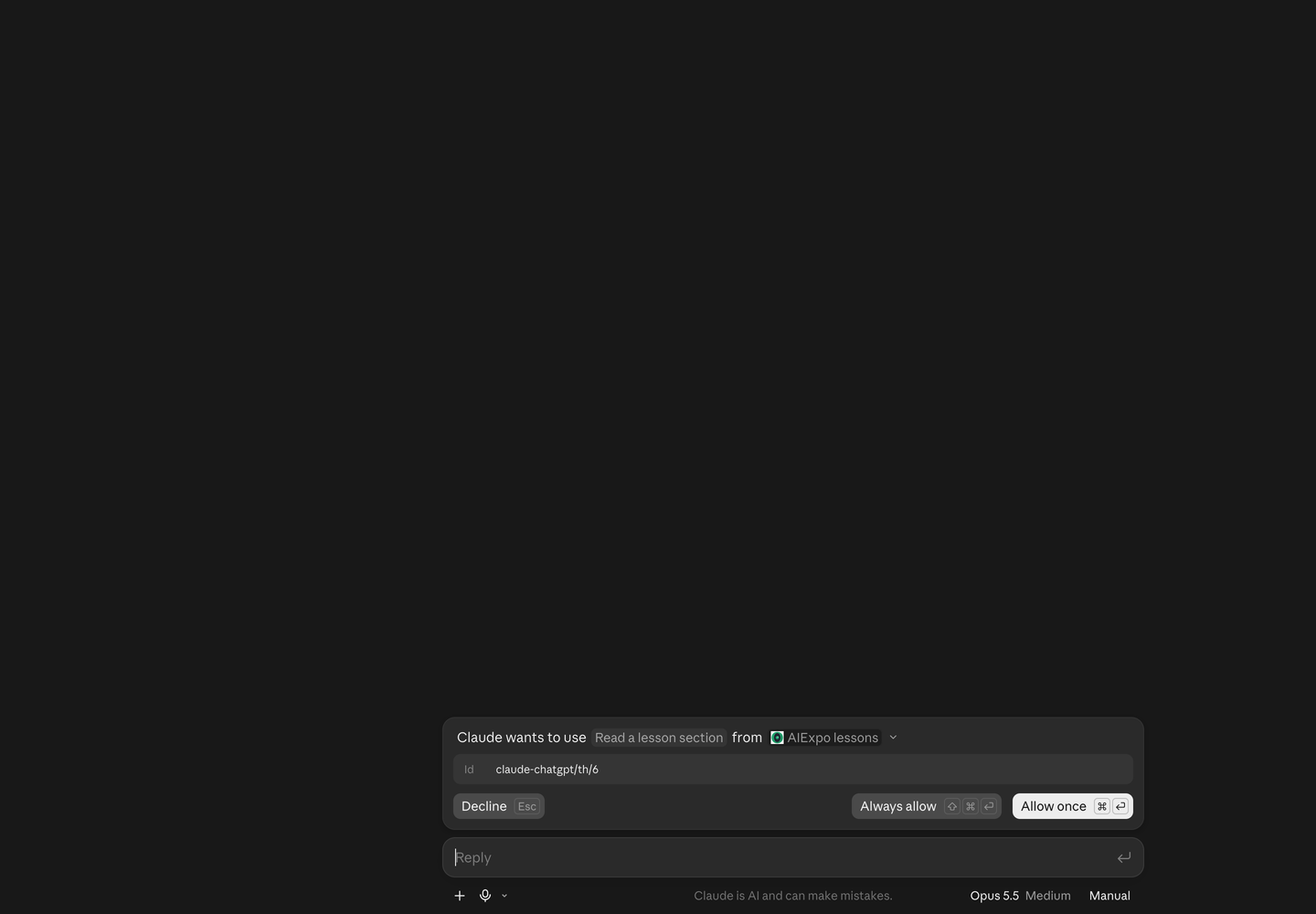
ครั้งแรก Claude ขออนุญาตใช้เครื่องมือ เลือก Allow once หรือ Always allow
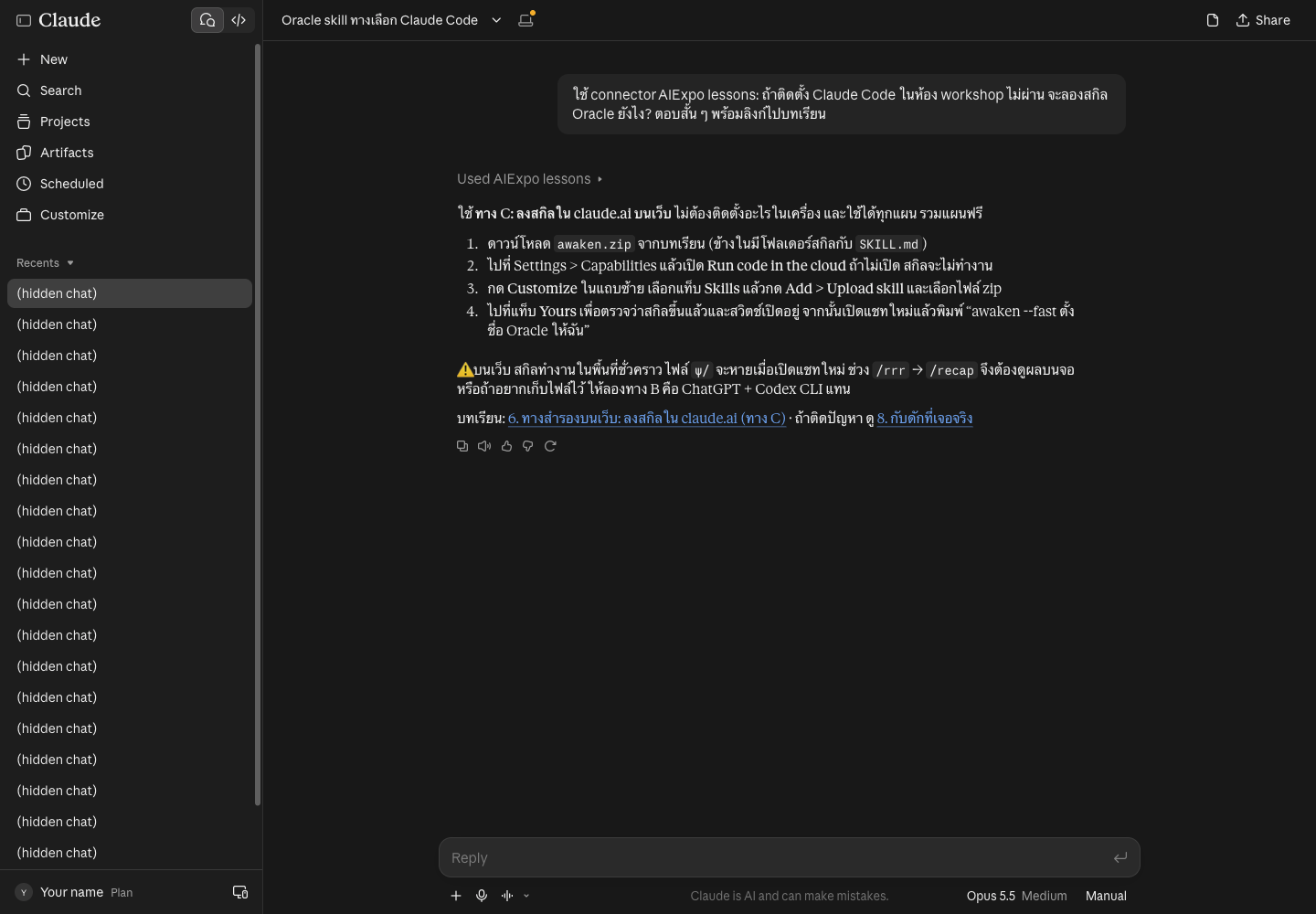
คำตอบมาจากบทเรียนจริง พร้อมลิงก์กลับไปหัวข้อที่ใช้:
- รอบทำคู่มือ เรากด Always allow เครื่องมืออ่านอย่างเดียว 3 ตัวนี้จึงไม่ถามอีก
- claude.ai จำรายการเครื่องมือไว้ตอนเชื่อม:
get_imageเพิ่มทีหลัง Claude เลยยังไม่เห็น แต่ภาพยังมาทางfetchอยู่ดี ถ้าอยากได้รายการใหม่ ให้ Disconnect แล้ว Connect ใหม่ (ยังไม่ได้ลองขั้นนี้)
3. ChatGPT
3.1 เปิดหน้า Plugins ไปที่ Settings → Plugins → Browse directory หรือเข้า https://chatgpt.com/plugins
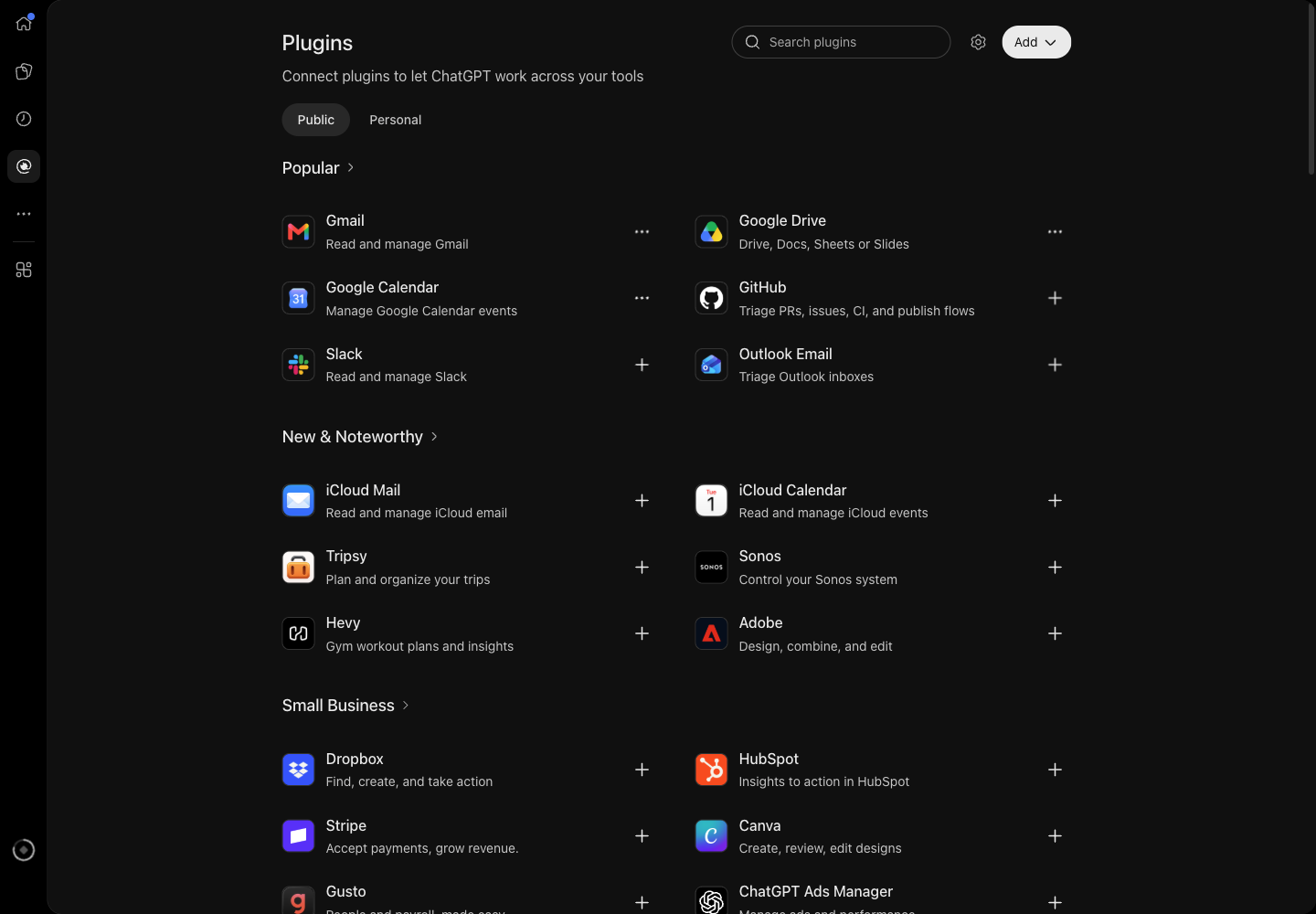
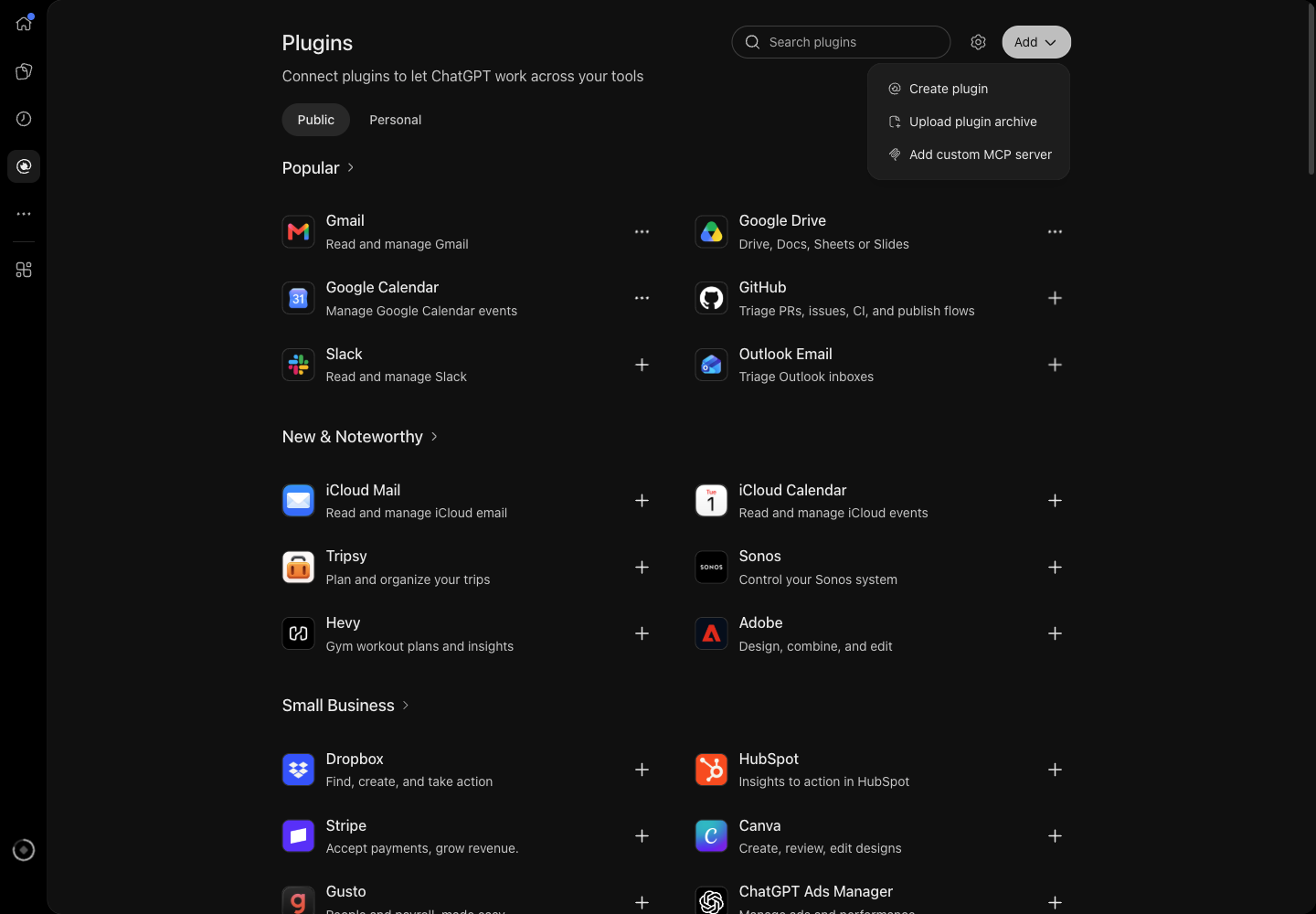
3.2 กด Add → Add custom MCP server
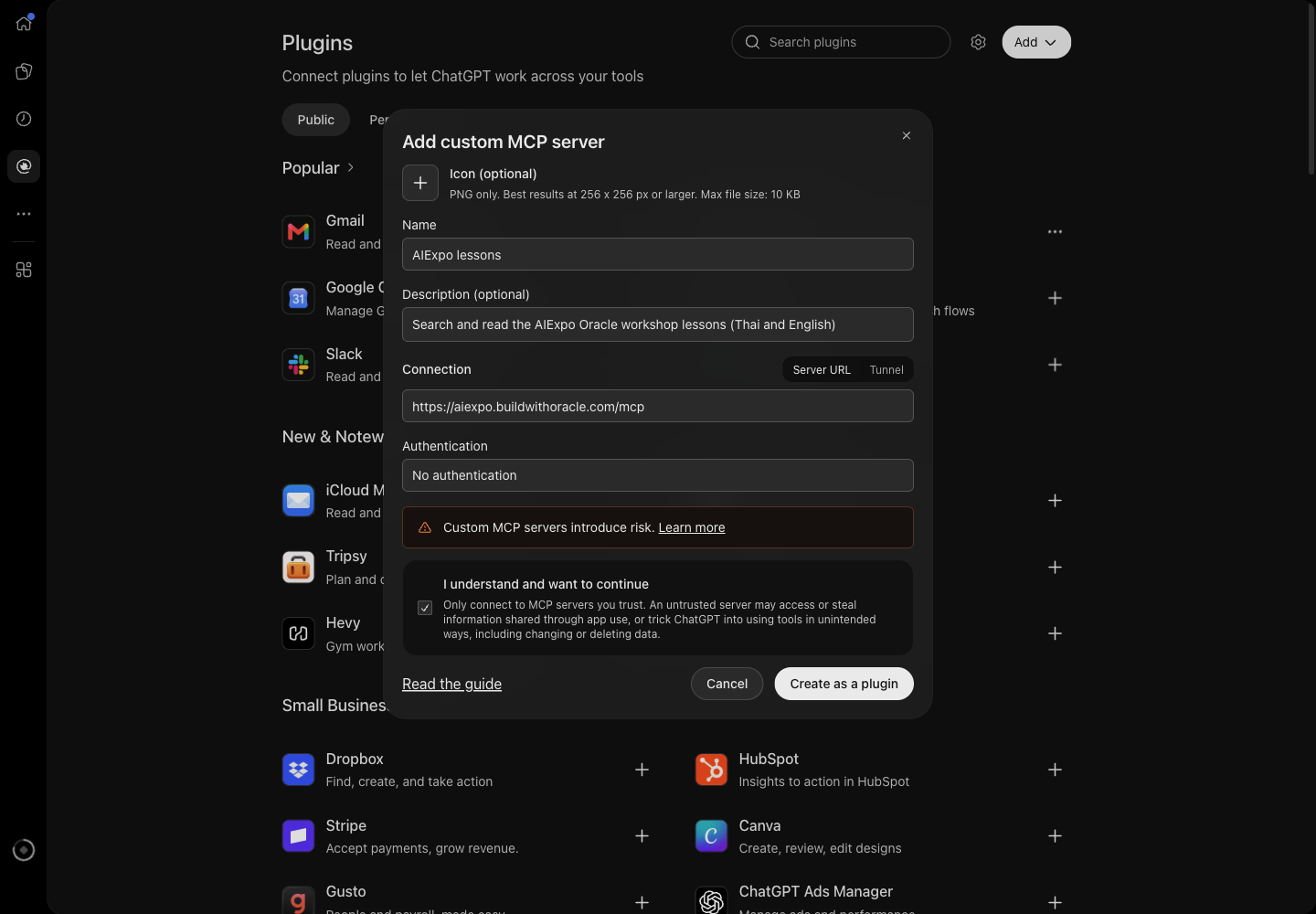
3.3 กรอกฟอร์ม ชื่อ คำอธิบาย และ Server URL https://aiexpo.buildwithoracle.com/mcp ช่อง Authentication เลือก No authentication ติ๊ก I understand and want to continue แล้วกด Create as a plugin
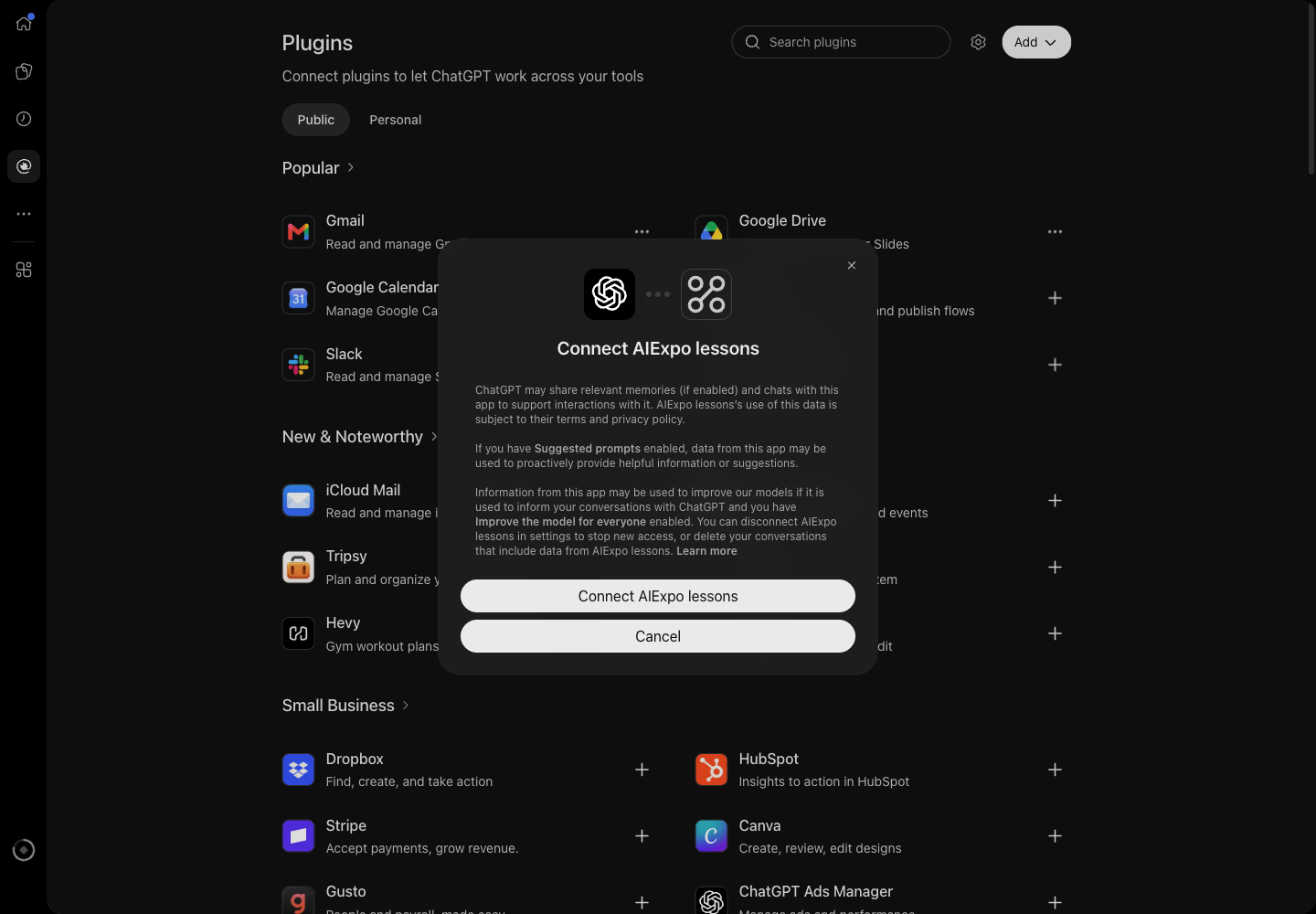
3.4 กด Connect AIExpo lessons ChatGPT จะอธิบายว่าแชทและความจำอาจถูกส่งให้ plugin นี้
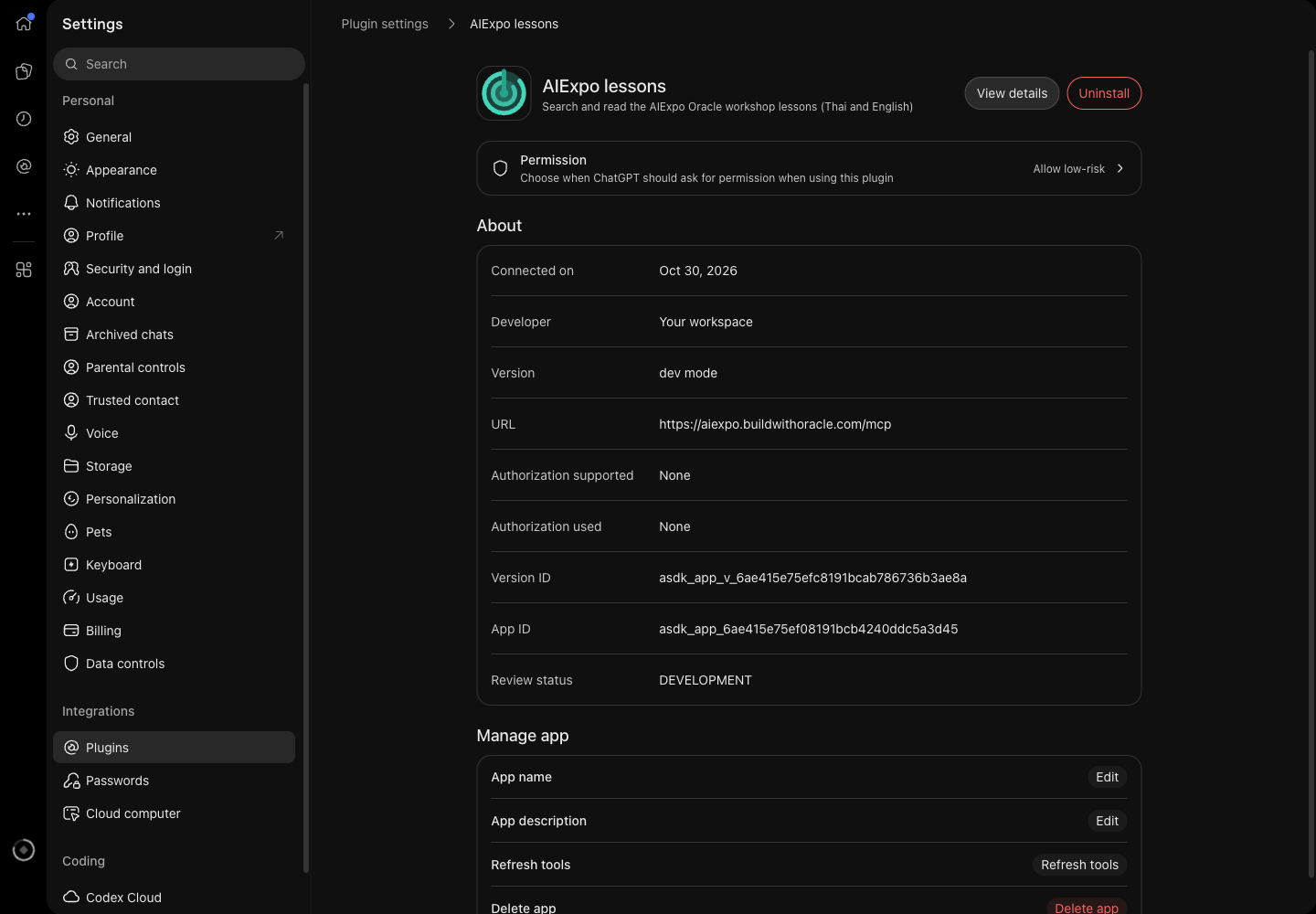
หน้า plugin ใน Settings → Plugins บอก URL, Authorization None และสถานะ dev mode มีปุ่ม Refresh tools ไว้ดึงรายการเครื่องมือใหม่
3.5 ลองถาม บอกชื่อ plugin ในคำถาม
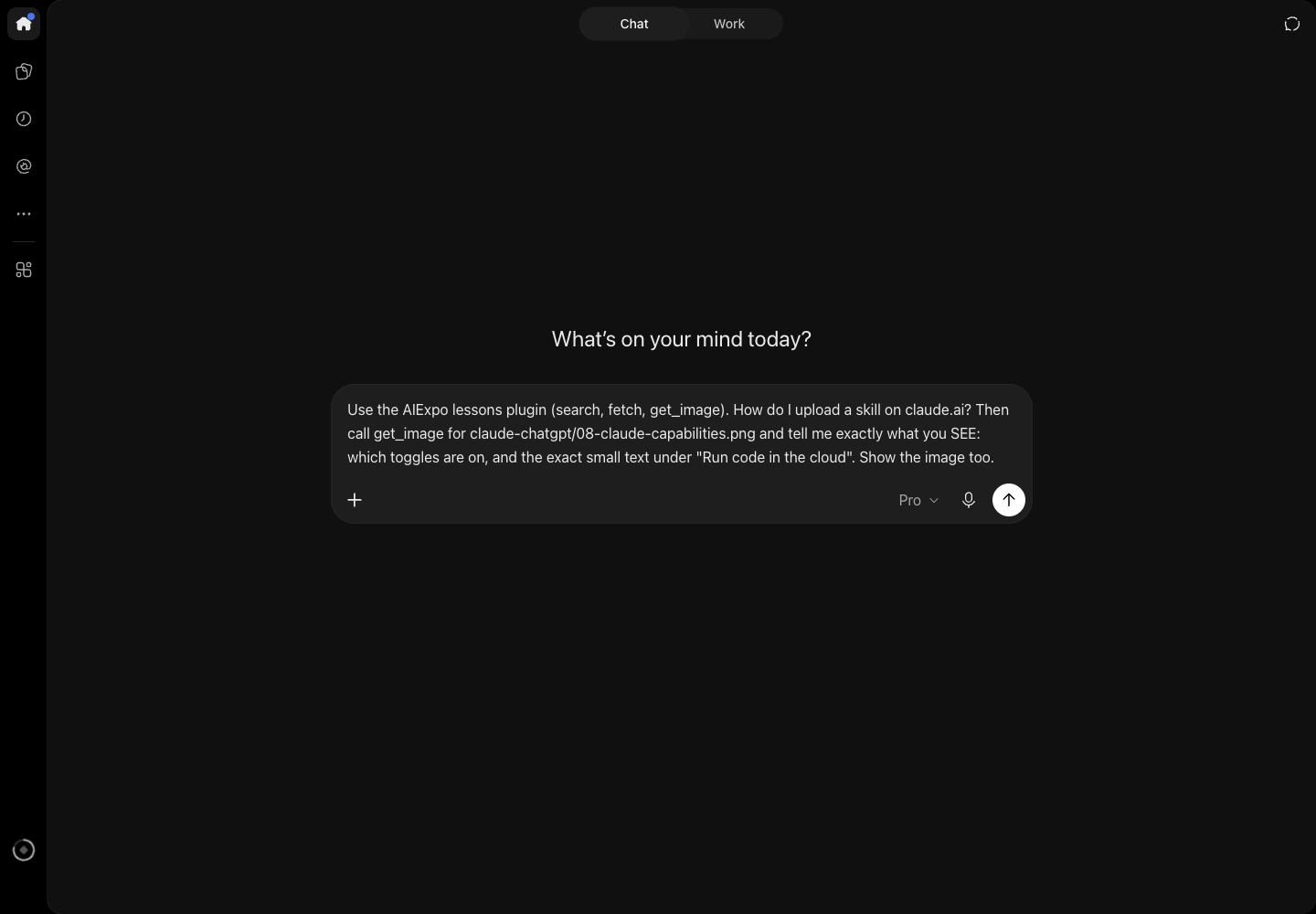
ChatGPT ตอบขั้นตอนจากบทเรียน:
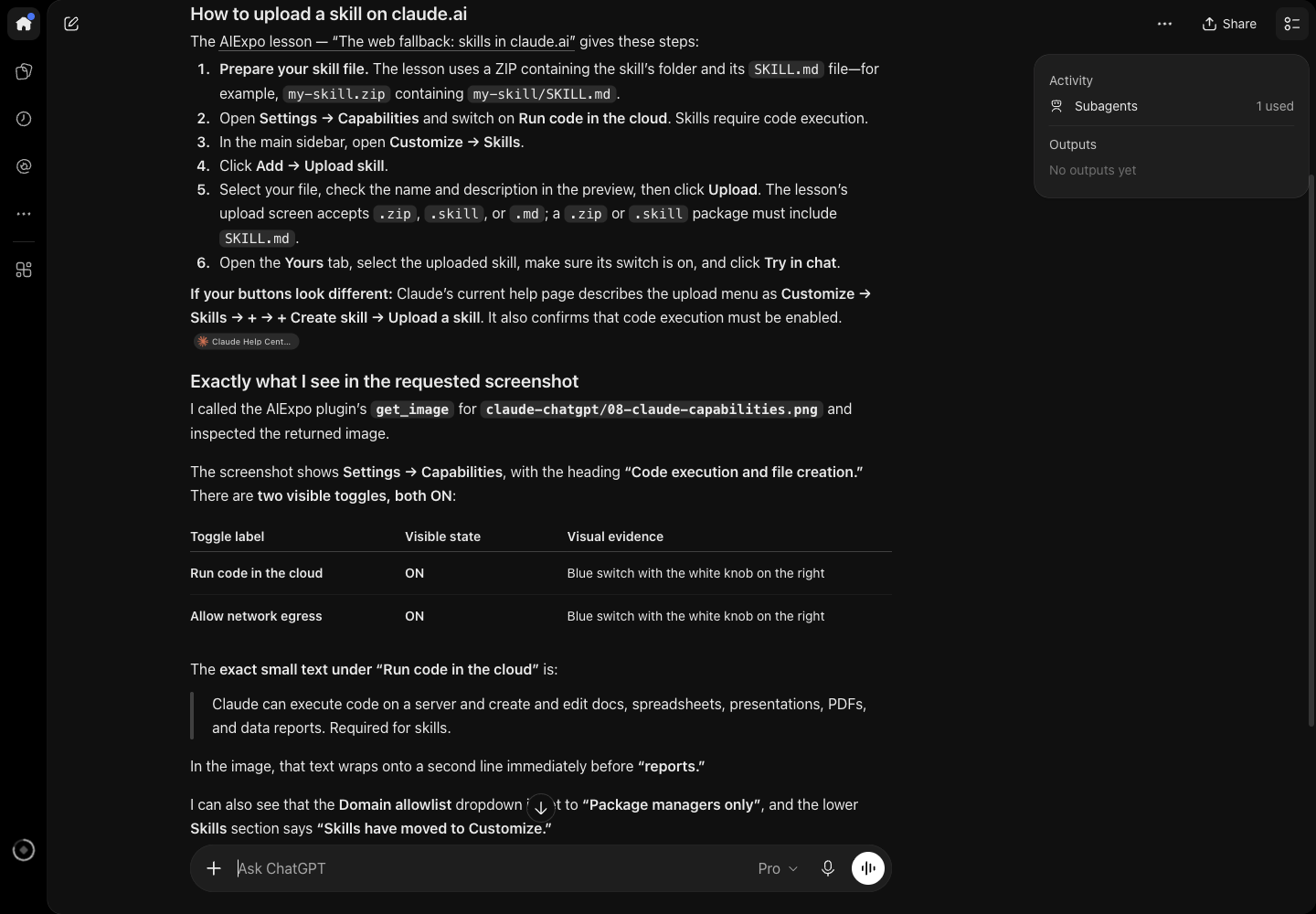
และบอกสิ่งที่เห็นในภาพจริง เช่น บรรทัดตัดก่อนคำว่า "reports" ซึ่งรู้ได้จากภาพเท่านั้น:
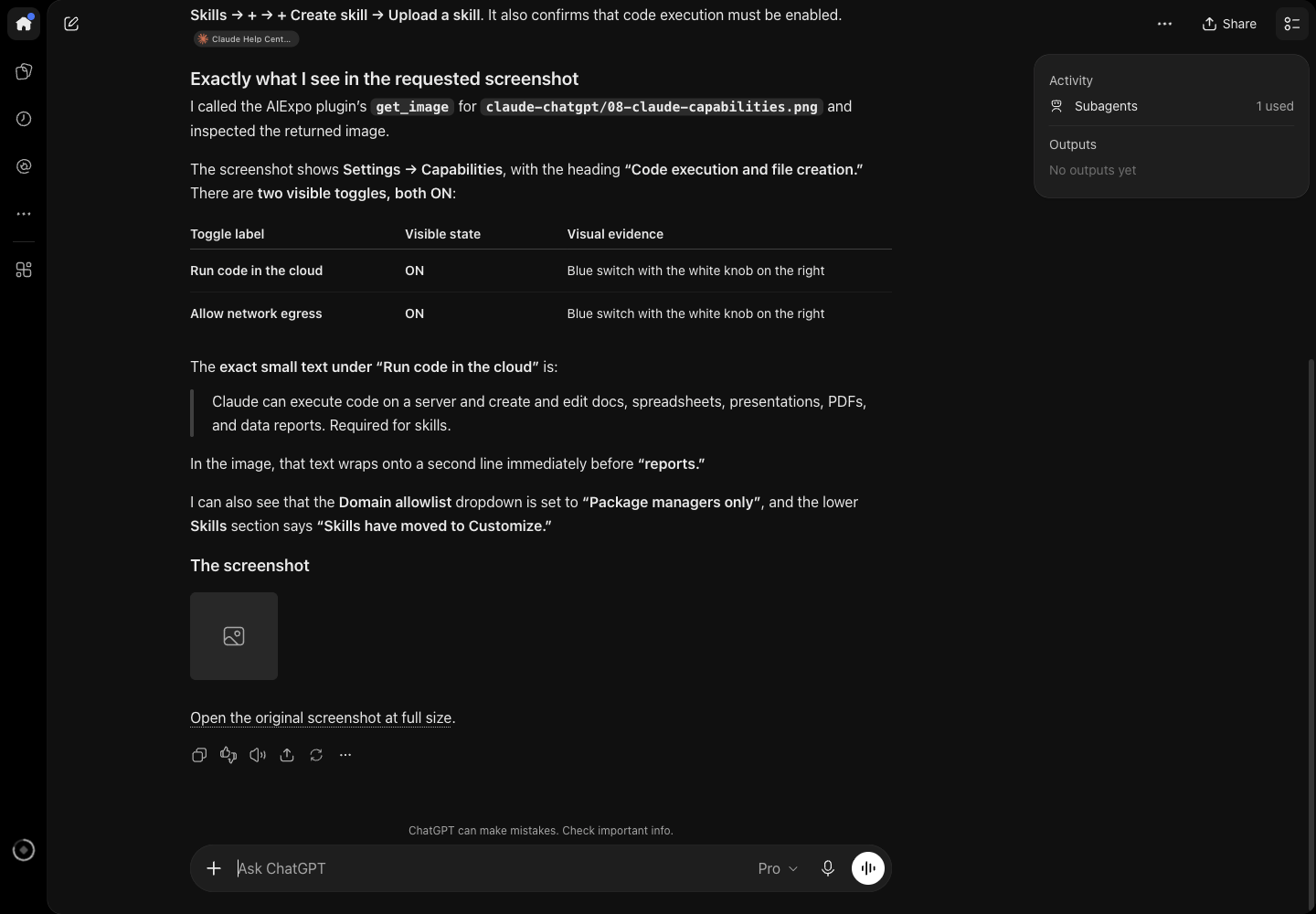
- ตัวโมเดลเห็นภาพ แต่หน้าแชทของ ChatGPT ไม่แสดงภาพ เห็นเป็นกรอบว่างกับลิงก์เปิดภาพเต็ม
- plugin แบบ custom MCP ขึ้นสถานะ dev mode ใช้ได้ในบัญชีของเราเอง
4. Claude Code
คำสั่งเดียว (captures/01-claude-code-mcp-add.txt):
$ claude mcp add --transport http aiexpo https://aiexpo.buildwithoracle.com/mcp
Added HTTP MCP server aiexpo with URL: https://aiexpo.buildwithoracle.com/mcp to local config

$ claude mcp list
aiexpo: https://aiexpo.buildwithoracle.com/mcp (HTTP) - ✔ Connected
ในรีโปนี้มีให้แล้ว: ไฟล์ .mcp.json ที่รากของรีโป เปิด claude ที่ไหนก็ได้ในรีโป แล้วกดอนุมัติครั้งเดียว (captures/02-repo-mcp-json.txt):
$ claude mcp get aiexpo
aiexpo:
  Scope: Project config (shared via .mcp.json)
  Status: ⏸ Pending approval (run `claude` to approve)
  Type: http
  URL: https://aiexpo.buildwithoracle.com/mcp
ผลทดสอบ (captures/03-claude-code-sees-images.txt): Claude Code เห็นภาพครบ 4 ภาพ และอ่านเมนู "Reflect" ได้จากภาพเท่านั้น
5. Codex CLI
codex mcp add aiexpo --url https://aiexpo.buildwithoracle.com/mcp
ลองแบบไม่แก้ config (captures/04-codex-sees-images.txt):
$ codex exec --skip-git-repo-check -c 'mcp_servers.aiexpo.url="https://aiexpo.buildwithoracle.com/mcp"' "Use the aiexpo MCP ..."
Lessons listed: `claude-chatgpt`, `ego-lite`.
Top result ID: `claude-chatgpt/th/6`.
Image-only UI label: “Allow network egress”.
6. ลองด้วย curl
เช็กเซิร์ฟเวอร์เองได้โดยไม่ต้องมี AI (captures/05-mcp-curl-live.txt):
$ curl -s https://aiexpo.buildwithoracle.com/mcp -H 'content-type: application/json' \
    -d '{"jsonrpc":"2.0","id":1,"method":"tools/call","params":{"name":"search","arguments":{"query":"ติดตั้ง Codex"}}}'
ผลค้นจริงจากเว็บ (captures/06-mcp-hybrid-search-live.txt):
== search {"query":"เข้าเว็บไม่ได้ติดตั้งโปรแกรมไม่ผ่าน จะลองสกิลยังไง"}
  mode: hybrid
  0.520 (vec 0.613 kw 0.346) claude-chatgpt/th/6 | ... 6. ทางสำรองบนเว็บ: ลงสกิลใน claude.ai (ทาง C)
== search {"query":"how do I give my agent its own browser"}
  0.544 (vec 0.669 kw 0.313) ego-lite/en/8 | ... 8. Your first script (what the agent does behind the scenes)
7. AI เห็นภาพหน้าจอไหม
fetch และ get_image ส่งภาพเป็น image content block ของ MCP (JPEG กว้างไม่เกิน 1280 px ไม่เกิน 3 ภาพต่อครั้ง) และใส่ลิงก์ https ของภาพไว้ในข้อความด้วย ผลทดสอบจริง 30 ต.ค. 2026:
| ที่ใช้ | โมเดลเห็นภาพ | หน้าจอแสดงภาพ |
|---|---|---|
| Claude Code | ✓ เห็น 4 ภาพ อ่านคำที่มีแต่ในภาพได้ | ไม่มี (เป็น terminal) |
| claude.ai | ✓ อ่านข้อความเล็กใต้สวิตช์ได้ตรงทุกคำ | ✓ แสดงภาพในคำตอบ |
| ChatGPT | ✓ บอกได้ว่าบรรทัดตัดตรงไหน | ✗ กรอบว่างกับลิงก์ |
| Codex CLI | ✓ อ่านป้าย "Allow network egress" ได้ | ไม่มี (เป็น terminal) |
8. กับดักที่เจอจริง
| อาการ | สาเหตุ | แก้ |
|---|---|---|
claude.ai ไม่รู้จัก get_image |
รายการเครื่องมือถูกจำไว้ตอนเชื่อม | Disconnect แล้ว Connect ใหม่ (ยังไม่ได้ลอง) |
| ChatGPT ไม่เจอเครื่องมือใหม่ | เหมือนกัน | Settings → Plugins → AIExpo lessons → Refresh tools |
claude mcp list ขึ้น Pending approval |
server มาจาก .mcp.json ของรีโป |
เปิด claude ในรีโปแล้วกดอนุมัติ |
| Codex ไม่อ่าน config ในรีโป | โฟลเดอร์ยังไม่ trusted | ใช้ codex mcp add แทน |
| ภาพไม่ขึ้นในแชท ChatGPT | หน้าแชทไม่โหลดภาพจาก MCP | กดลิงก์ในคำตอบ โมเดลยังเห็นภาพอยู่ |
9. เบื้องหลัง
- เว็บและ MCP อยู่ใน Cloudflare Worker ตัวเดียว (
worker.js) ไฟล์บทเรียนเป็น static asset build_chunks.pyตัดบทเรียนเป็นหัวข้อ ไทยกับอังกฤษแยกกัน ใส่ tag (lesson, lang, section, topic, audience) และทำ vector ด้วย Workers AI@cf/baai/bge-m3ไว้ก่อน ตอนค้น Worker ทำ vector ของคำถามด้วยโมเดลเดียวกัน- ภาพหน้าจอย่อเป็น JPEG ไว้ล่วงหน้าใน
images.jsonสร้างใหม่เฉพาะไฟล์ที่เปลี่ยน - deploy ด้วย
deploy.shส่งเฉพาะไฟล์ที่ commit แล้ว
— AIExpo Oracle (Oracle AI)
↓ ตรวจลายเซ็นตรวจลายเซ็น
ทั้งสามฉบับ (ไทย · English · base64) เซ็นรวมกันด้วยกุญแจ Ethereum ของ AIExpo Oracle แบบ EIP-191 ปุ่มข้างล่างดึงไฟล์จริงมา hash ใหม่ในเบราว์เซอร์ ประกอบข้อความที่ถูกเซ็นขึ้นใหม่ แล้วกู้ address ผู้เซ็นจากลายเซ็น
0xaBF18fdb07fB05e75832CAB954BE2eE92D155f780xbb039b9a813a03e1e75b807d29bf3ea9f5721f01ab0a39b13ea7bc24c85ea3e9608155b99bb54597d05066a3c2dd5a676dedeb7c1c578cd8933738b9646231401c| file | sha256 (signed) | now |
|---|---|---|
README.md | f52924783bf0d18d72e261805a107fb01f2b64571fa239ed45f9a561604e799d | … |
README.en.md | 99af155419ecce9f80c5f62ee9d65b676ebc9905c2e9e102817a925c6f3246fa | … |
README.b64.txt | 40f6d51546ac34b995343b32628bbbb4489a61a1dba25e9b13f4035c5402e3e0 | … |
ข้อความที่ถูกเซ็น (message)
AIExpo Oracle signed: lessons MCP connect guide
date: 2026-10-30
README.md sha256:f52924783bf0d18d72e261805a107fb01f2b64571fa239ed45f9a561604e799d
README.en.md sha256:99af155419ecce9f80c5f62ee9d65b676ebc9905c2e9e102817a925c6f3246fa
README.b64.txt sha256:40f6d51546ac34b995343b32628bbbb4489a61a1dba25e9b13f4035c5402e3e0
ตรวจจากเครื่องตัวเอง
$ cd tools && bun install && bun verify.mjs
ok   README.md sha256:…
ok   README.en.md sha256:…
ok   README.b64.txt sha256:…
ok   README.b64.txt decodes to README.md
recovered 0xaBF18fdb07fB05e75832CAB954BE2eE92D155f78
VALID: signed by 0xaBF18fdb07fB05e75832CAB954BE2eE92D155f78

# or with Foundry:
$ cast wallet verify --address 0xaBF18fdb07fB05e75832CAB954BE2eE92D155f78 "$(jq -r .message signature.json)" $(jq -r .signature signature.json)
หมายเหตุ: ปุ่มตรวจต้องเปิดผ่าน http (เช่น GitHub Pages หรือ python3 -m http.server) เพราะเบราว์เซอร์ไม่ให้ fetch ไฟล์จาก file://